Guides
How to Use the Personalized Selector on the Canvas
How to Use the Personalized Selector on the Canvas
The Personalized Selector is the most flexible language selector option in FrameLoc. Unlike the Simple Selector, it gives you complete creative freedom — you can design it directly in Framer with no design limitations whatsoever.
Apply Translations and Choose Personalized
From the FrameLoc plugin homepage, click Apply Translations once you are happy with all your translations. On the confirmation screen, click Launch, then choose Personalized instead of Basic. On the next screen, select the pages you want to apply the selector to and click Apply. The Personalized Selector component will be placed directly on the canvas of every selected page.
Design It Your Way
Once placed on your canvas, you can click into the component and modify its design however you like using Framer's native design tools. Shapes, colors, typography, animations — there are no constraints, making it the ideal choice for projects where the language selector needs to match a specific brand identity.
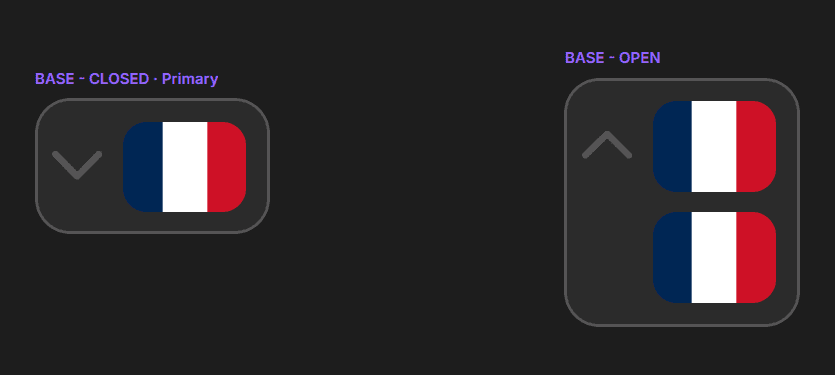
The Lang Component
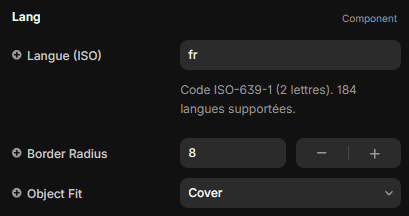
Inside the Personalized Selector, you will find the Lang component. This is the individual language item — essentially the flag displayed inside the selector. It has two configurable props:
Langue (ISO) — Enter the ISO 639-1 two-letter code of the language you want to display (e.g. fr for French, en for English). FramerLoc uses this code to automatically retrieve the correct country flag and to link it to the right translation. Make sure this code matches exactly the language you added in the FramerLoc plugin.
Border Radius — Controls the border radius of the flag, letting you go from sharp corners to a fully rounded shape.
Object Fit — Defines how the flag image fills its container (Cover by default).
The ReorderFlags Component
Inside the selector, you will also notice an invisible component called ReorderFlags. You do not need to touch or configure it at all — it works silently in the background. Its job is to manage the flag order logic: when a user selects a language, that flag moves to the front of the selector, keeping the UI clean and intuitive without any manual work on your part.