Guides
How to Back Up Your Translation Configuration
How to Back Up Your Translation Configuration
FrameLoc automatically stores all your translation data directly inside your Framer project, so your work is never isolated to the plugin alone.
Where Your Data Lives
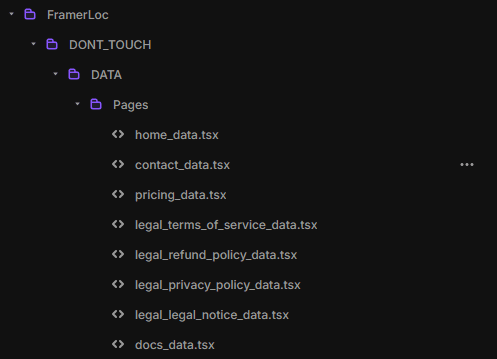
Every time you save translations in FramerLoc and apply them to a page, the plugin generates a dedicated code file for that page inside your Framer project. These files contain all the translation data associated with that page — detected texts, custom texts, and their translations for every language you have configured.
How to Access Your Backup
Since these files live natively inside Framer, you can access them at any time through your project's code files. Each page you have visited and worked on via the FramerLoc plugin has its own corresponding file. To back up your full translation configuration, simply locate and export each of these files from your Framer project. This gives you a complete, page-by-page archive of every translation you have ever saved.
This architecture also means that if you ever need to migrate, restore, or audit your translations, all the data is already there — structured, accessible, and tied directly to your Framer project rather than stored in an external database or service.