Guides
How to Setup FramerLoc in Your Framer Project
How to Setup FramerLoc in Your Framer Project
Setting up FrameLoc for the first time takes less than five minutes. This guide covers everything from activating your license key to adding your first translation language so you can start localizing your Framer project right away.
Activate Your License
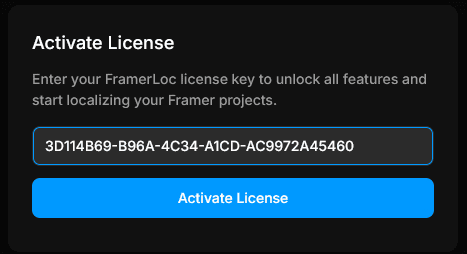
The first time you open FrameLoc inside Framer, you will be prompted to enter your license key. Paste your key into the input field and click Activate License to unlock the plugin for your project.
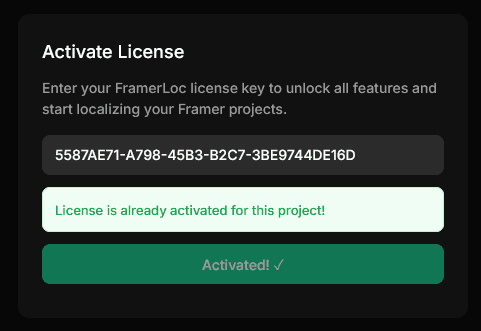
Once the key is validated, the button turns green and a confirmation message appears. FrameLoc is now fully unlocked and ready to use for this specific Framer project.
Add Your First Language
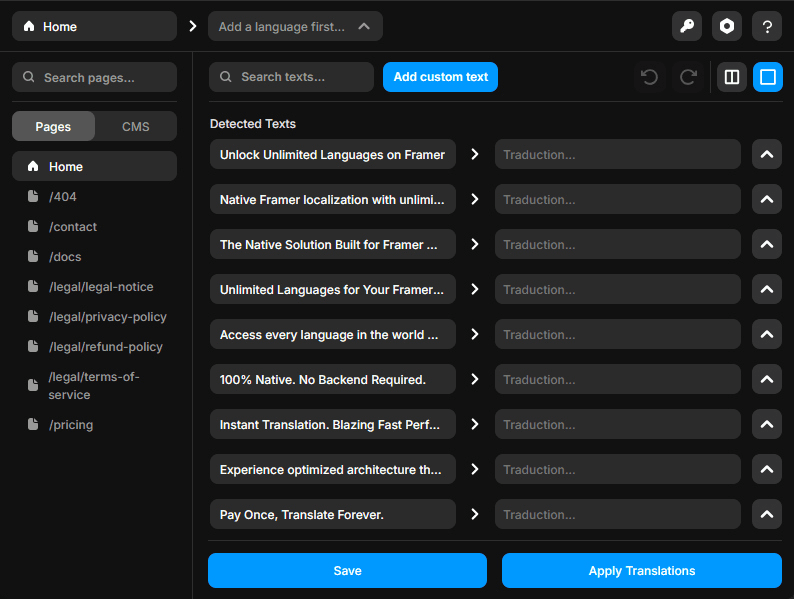
After activation, the main FrameLoc panel opens. At this stage, you cannot start translating yet — the plugin requires at least one language to be configured first. Click the gear icon in the top-right corner of the panel to open the Settings.
Inside the Settings panel, locate the Add a language section. Open the dropdown, select the language that matches your site's existing content, and click Add. This is the language your site is currently written in.
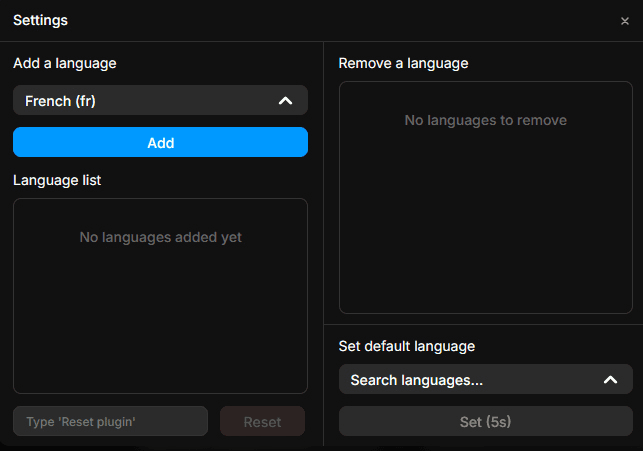
Your language now appears in the Language list. To remove it at any point, double-click the × button next to it in the Remove a language section.
Set Your Default Language
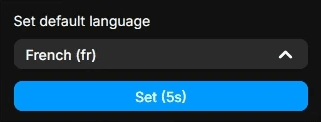
With your first language added, scroll down to the Set default language section. Select your language from the dropdown, then press and hold the Set button for 5 seconds to confirm. This defines which language is the primary language of your site — the one FrameLoc will fall back to when a visitor's browser language is not available.
Add Your First Translation Language
Now that your default language is configured, go back to the Add a language section and repeat the same process to add your first translation language. Select a different language from the dropdown and click Add.
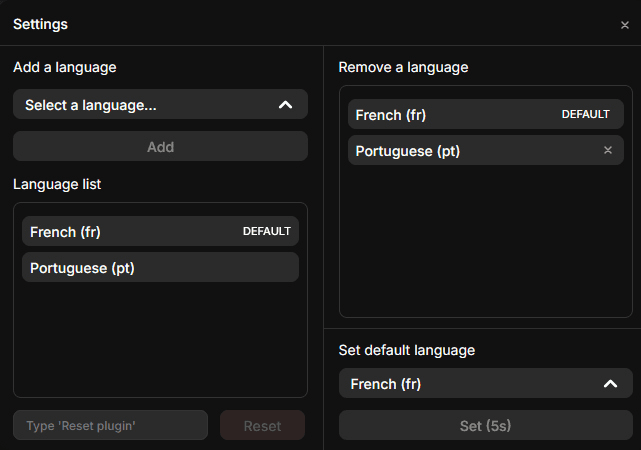
Your language list now contains your default language and at least one translation language. Close the Settings panel — FrameLoc is fully configured and you are ready to start translating your Framer site.