Guides
How to Translate CMS Pages in FramerLoc
How to Translate CMS Pages in FramerLoc
FramerLoc supports Framer CMS pages just as well as static pages. Translating a CMS item works exactly the same way as translating a regular page — the only difference is how you navigate to it.
Switch to the CMS Tab
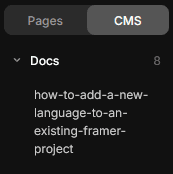
In the Pages panel on the left side of the FrameLoc plugin, click the CMS tab to switch from static pages to your CMS collections. The panel will update to display all the CMS collections available in your Framer project, with each collection expandable to reveal its individual items.
Select a CMS Item and Start Translating
Click on any CMS item from any collection to open it in the Translation panel. From there, the experience is identical to translating a static page — FrameLoc automatically detects all the text layers in that item and lists them as translation pairs. Simply fill in the translation fields on the right side, save your work, and run Apply Translations when you are ready to publish.