Guides
How to Add a New Language to an Existing Framer Project
How to Add a New Language to an Existing Framer Project
Adding a new language to an existing FrameLoc project takes only a few seconds. There is no need to reconfigure anything — your existing languages and translations are left untouched.
Open the Settings Popup
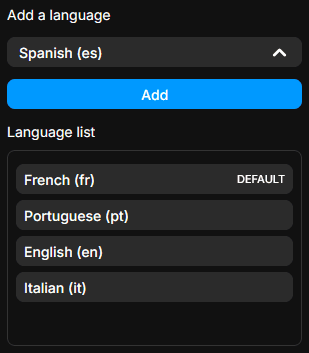
Start by clicking the gear icon in the top-right corner of the FrameLoc panel to open the Settings popup. Inside, you will find your current Language list, which displays all the languages already added to your project, including your default language.
Select and Add Your New Language
In the Add a language section at the top of the Settings popup, open the dropdown and browse through all the languages supported by FrameLoc. Select the one you want to add, then click the Add button. The new language instantly appears in your Language list alongside your existing ones.
Start Translating
Once the new language has been added, close the Settings popup. Select your new language in the top bar language selector and navigate to any page — all detected texts are immediately ready to be translated. When you are done, save your work and run Apply Translations to publish the new language to your Framer project.